This is one of the few devices that I knew I really needed to have as soon as I saw it. At first glance, it looks just like a boring Chinese tablet. But when you take a closer look, you'll see that it's really interesting.
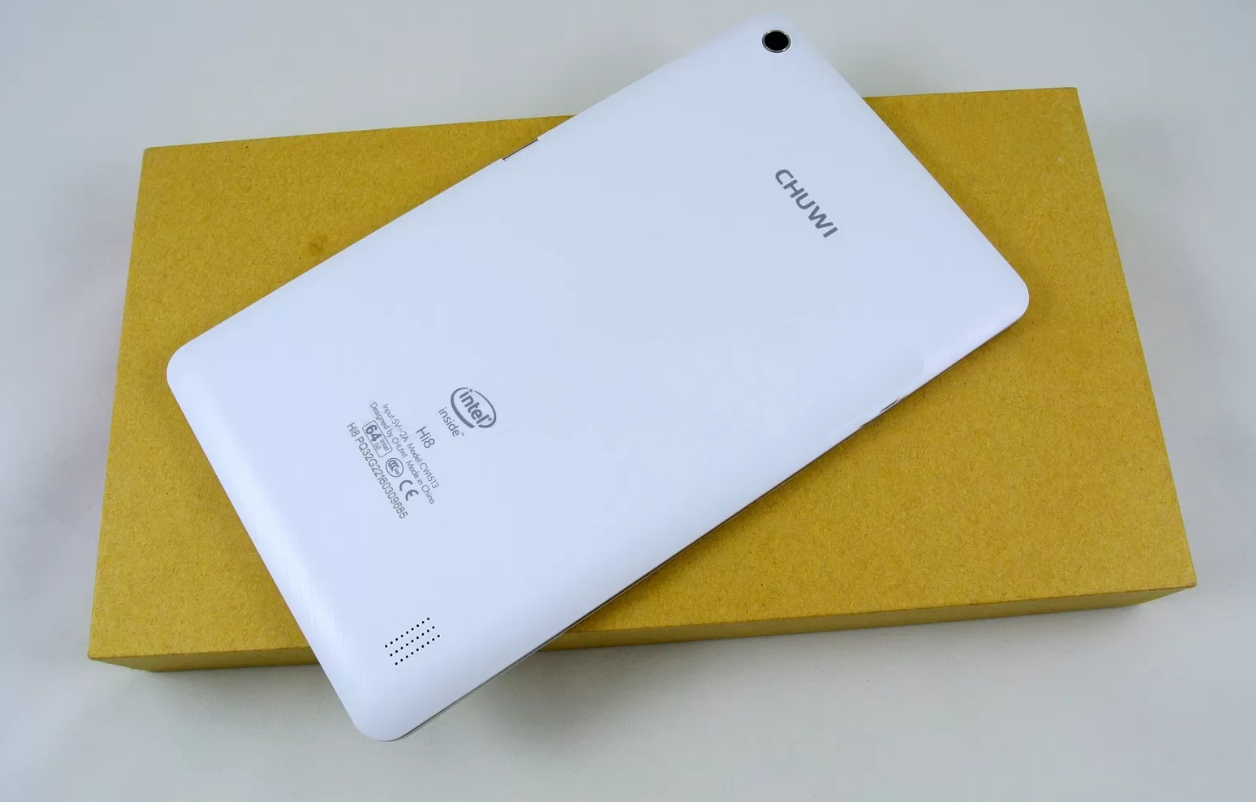
To be honest, the Chuwi Hi8 is not that interesting as it is. But my model is the Chuwi Hi8 Dual, which means it has dual booting. It's not just simple dual booting, but has some nice tweaks that make it different.
So, when you don't know what to expect, the first thing that surprises you is that you power up the device and, even though it has a Windows 'hardware' touch button at the bottom, it boots into Android. It seems a bit funny, but yeah. Why not? The Android version is 4.4. It looks quite normal; just a few Chinese-named apps that I have removed.
The most interesting part is the top icon bar on Android. As well as the classic buttons and switches for Wi-Fi, Bluetooth and other adjustments, there is a special button labelled 'OS SWITCH'.
Yes, I know this function isn't really anything special — it just reboots with a different boot flag — but it's a really cool detail.
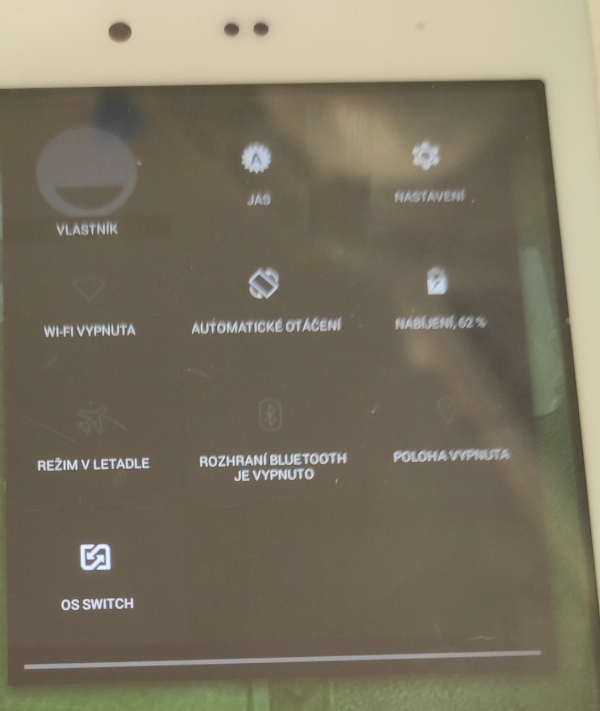
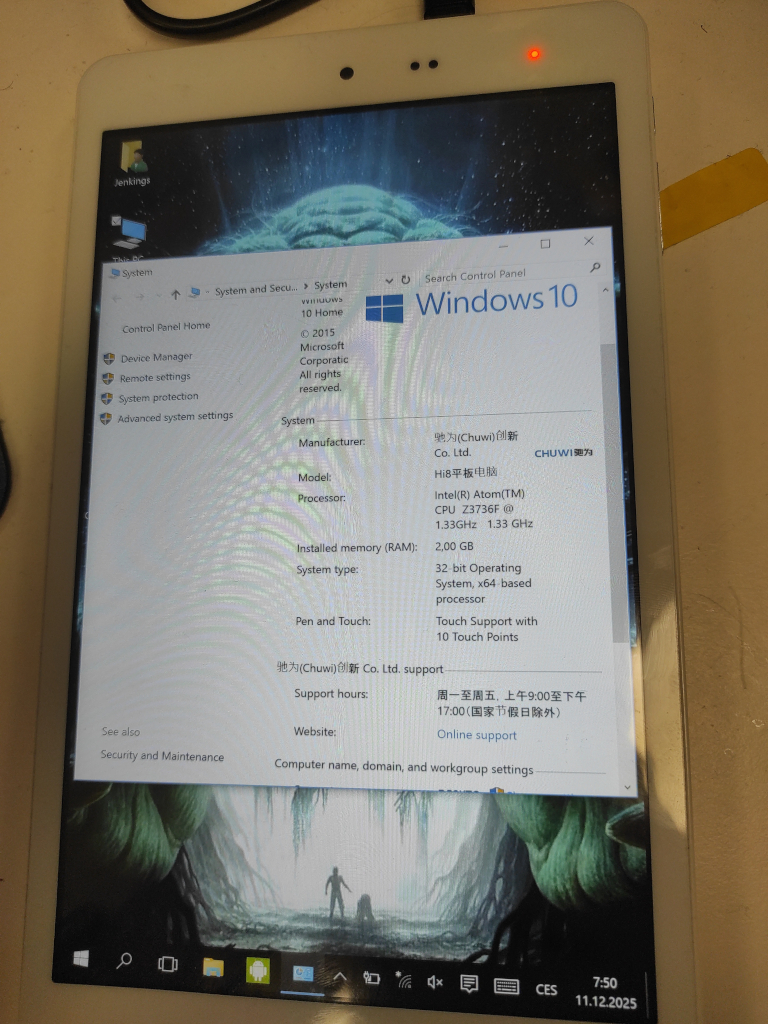
Pressing this button causes the tablet to reboot and start booting into Windows. My tablet was equipped with Windows 10 and was booting correctly. The problem was that the version was buggy, but I wanted to get this piece working as it is relatively rare and has the rare feature of dual booting.
To describe my problem: the Windows operating system was booting correctly and working well, but it was not recognising the network or the touchscreen. These are two very important functions for a tablet. This glitch was really tricky. The network would sometimes start working. It would only work for one out of ten boot-ups and only for a while. Then it would stop detecting WLAN capability again. It was really strange. The touchscreen was also problematic. It worked in all Windows service menus outside the main OS. This meant the 'recovery' screen, where you can choose to reboot to BIOS, reboot to safe mode, or repair using media, etc. But these were the only ones; everywhere else I had no touch.
But I really wanted to get it working. I downloaded tens of different drivers, even from the manufacturer, but none of them worked. Windows kept returning the bugged drivers for these devices instead of the ones I wanted to use.
I was also suggested using a special program that installs the necessary drivers outside the Windows process and forces the correct ones. It was supposed to work 100% of the time and bypass the struggles caused by Windows.
It really seemed to work, but after successfully installing it and refreshing the device list, Windows immediately rearranged it and replaced the drivers meant for these devices with bugged ones.
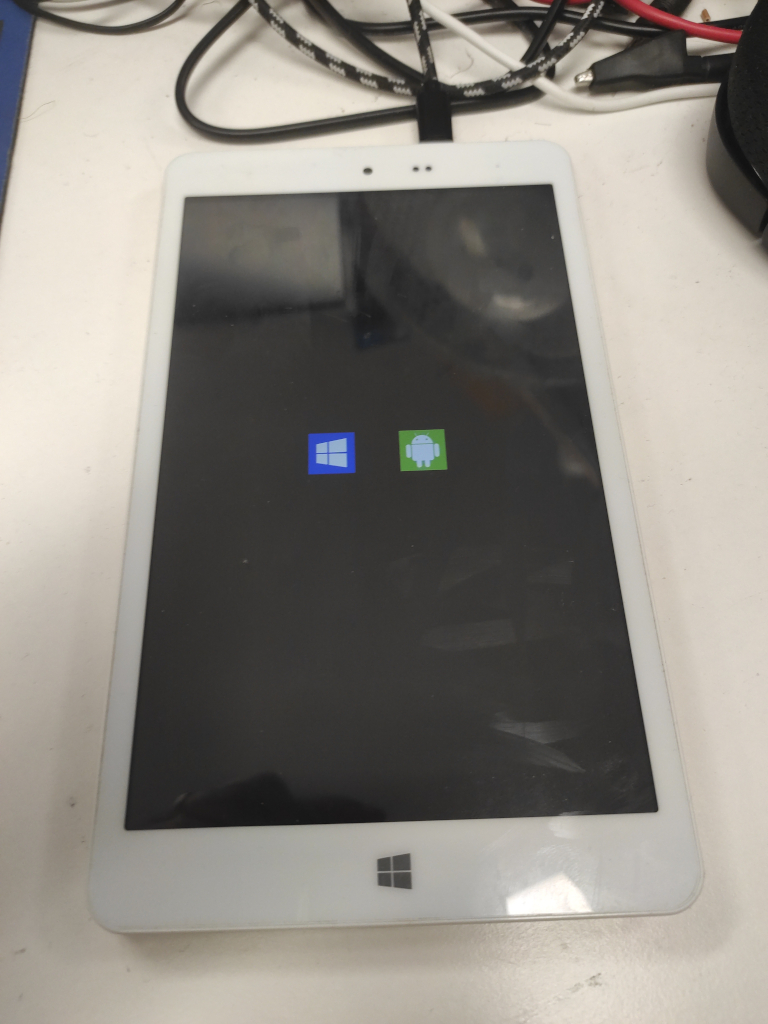
I went through many reboots and also discovered the special boot-up menu, which allows you to choose which system to boot by pressing the power and volume down buttons. This is also fine, as it means you don't have to boot into the last system used and then reboot into the one you want.
I was really struggling to get things to work. In the end, I decided to try reinstalling the system. But that was not an easy option either, as there are not many links to the original Windows installer and the zips that can be found on the internet are corrupted and cannot be unpacked.
After many hours of unsuccessful attempts, tricks and hacking, and with my hopes beginning to fade, I finally managed to create a full image of the OS. I reverse engineered some archives and fixed a lot of issues. I made it work. For those who are also trying to resuscitate their Chuwi HI8 or who just want to perform a fresh installation, I am providing the fixed image here.
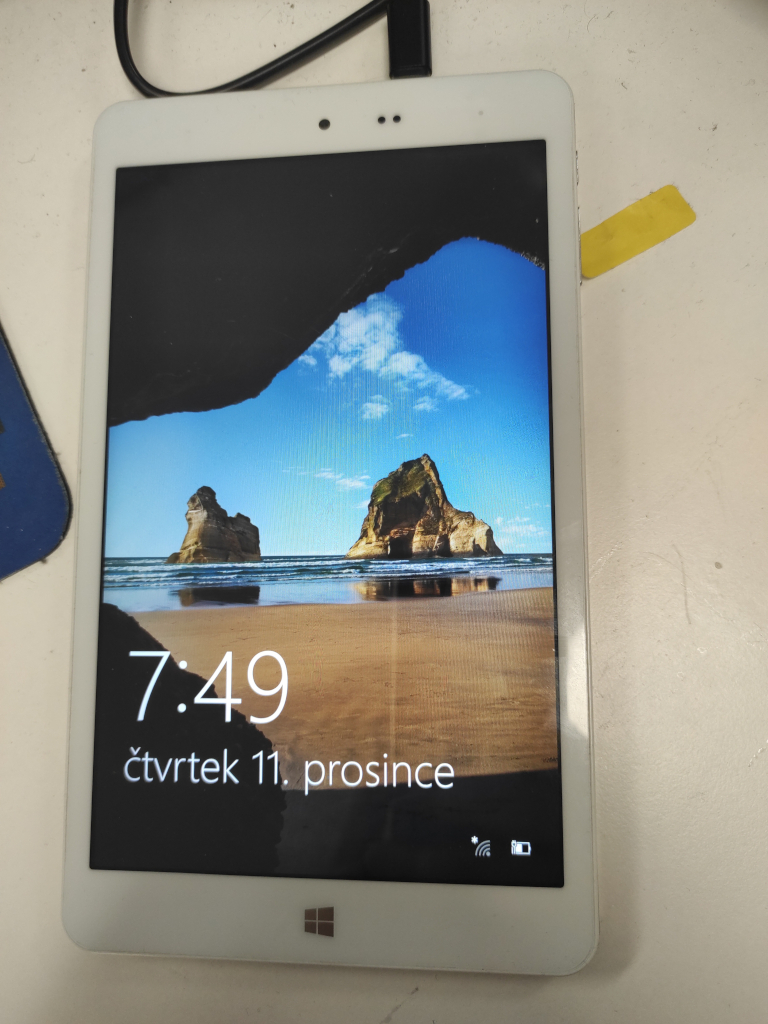
This shows the Windows installation on my tablet. However, even with the installation image fixed, it was not easy to install it on the device.
There are official documents from the manufacturer and users explaining how to reinstall the software. They seem really straightforward, but none of them worked for me as the device would not boot from them. So I can share the method I used to get it working.
I prepared an 8 GB USB drive and downloaded the regular Windows 10 (EN) ISO from the official Microsoft website.
Then I started WoeUSB (a tool for creating Windows bootable USBs under Linux) and chose to create a Windows bootable USB. I selected the downloaded image and made sure that I wanted the file system to be NTFS (IMPORTANT!). Then I let it create the USB for me. It took a while, but it ended successfully. I then opened Disk Manager and mounted the partition with the installation files. As WoeUSB creates three or four partitions, including some UEFIs, make sure you select the correct one. I then took the files from the archive I provided and replaced the contents of the partition with them. The second really important thing was to then unmount the partition and rename it exactly "WINPE". Without doing this, the installation process fails. I know because I had many unsuccessful attempts, even though the installation seemed to work well in the beginning.
I spent a lot of hours making it work, but it was worth it as dual-booting tablets are really uncommon. I hope my work helps some readers with their devices! The prepared image should work with dual-booting devices in the same way as devices with only Windows. The installer I provided should recognise which device you are using and perform the correct installation.
If you need help or advice with the installation, please leave a comment or send me an email and I will try to help.

Jan "Jenkings" Škoda - blog
Simplifying IT, Amplifying Knowledge